
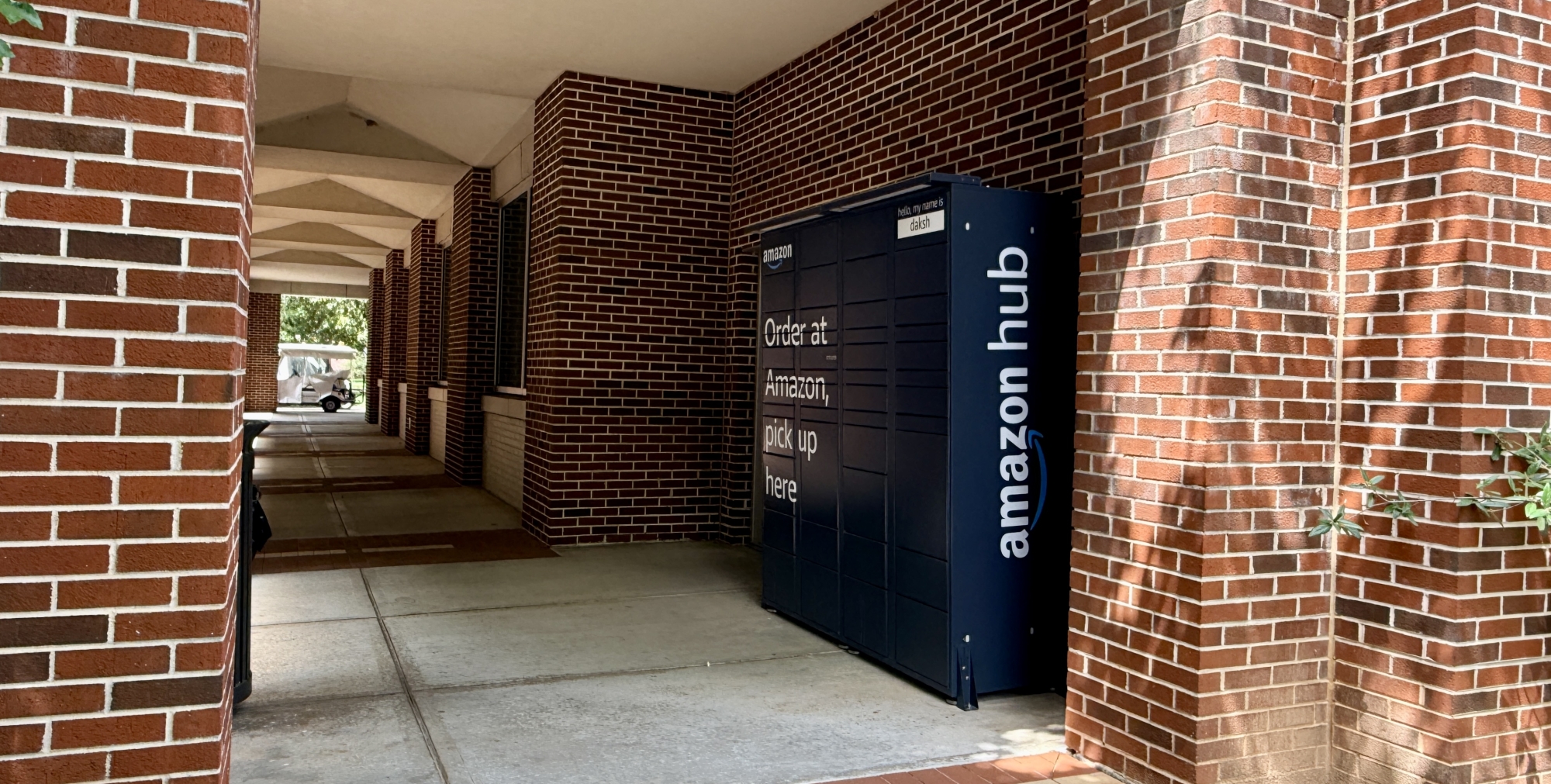
Using Amazon Lockers on Campus
Amazon Lockers provide students with a self-service pick-up location for Amazon.com packages. Lockers are available at four convenient campus locations.
Please note that the Georgia Tech Post Office is not responsible for loading, delivery, or maintenance of Amazon Lockers and cannot access locker contents.
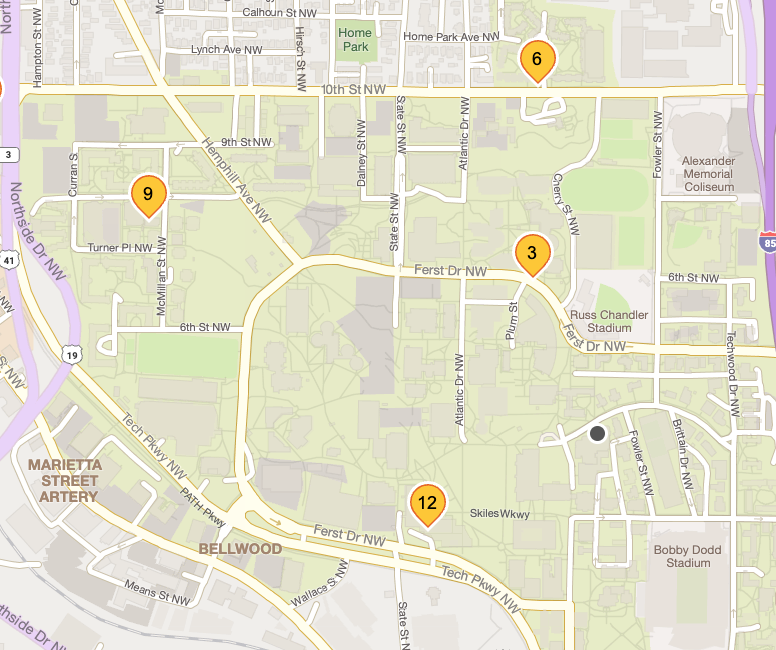
Location Markers
3: Amazon Locker - Daksh
6: Amazon Locker - Len
9: Amazon Locker - Dilophosaurus
12: Amazon Locker - Bubbly
*Be sure to pick the correct locker name when checking out.
Using the Amazon App
Add Your Locker
- Open your Amazon app
- Open Account Settings and navigate to “Your Addresses”
- Tap “Add new pickup location”
- Enter the GT zip code: 30332
- Choose one of our four on-campus lockers
- Add locker to your address book
Check Out
- In your cart, click proceed to checkout
- Select the locker as your delivery address
- When you package is ready for pickup, you’ll receive an email/push notification
- Generate the 6-digit pickup code or barcode in the app
- Enter the 6-digit code or scan barcode at locker to pick up your package
Using the Amazon Website
Add Your Locker
- Log in to Amazon.com
- Hover over “Account and lists”
- Click on “Account”, then “Your Addresses”
- Select “Add Address”
- Click “Or find an Amazon pickup location near you”
- Enter the GT zip code: 30332
- Choose one of our four on-campus lockers
- Click ‘Add to address book”
Check Out
- In your cart, click proceed to checkout
- Under ‘Select a delivery address”, choose your selected locker under “Pickup locations”
- When you package is ready for pickup, you’ll receive an email notification
- Generate the 6-digit pickup code or barcode from the email
- Enter the 6-digit code or scan barcode at locker to pick up your package